


Collecting product reviews is one of the most effective ways to build trust and drive conversions for your online store. And the most reliable channel to collect those reviews? Review request emails.
After every order is completed or delivered, you can send automated emails asking customers how they feel about their purchase. It’s simple, scalable, and proven — TrustShop merchants have collected hundreds of thousands of reviews through email alone, making it the single largest source of authentic customer feedback.
But sometimes, your review request emails don’t perform as expected. Emails land in spam. Open rates are disappointingly low. Customers click but never actually leave a review. If any of this sounds familiar, this guide is for you.
In this article, we’ll walk through a complete, actionable playbook to improve your review request email performance and collect more reviews through email.
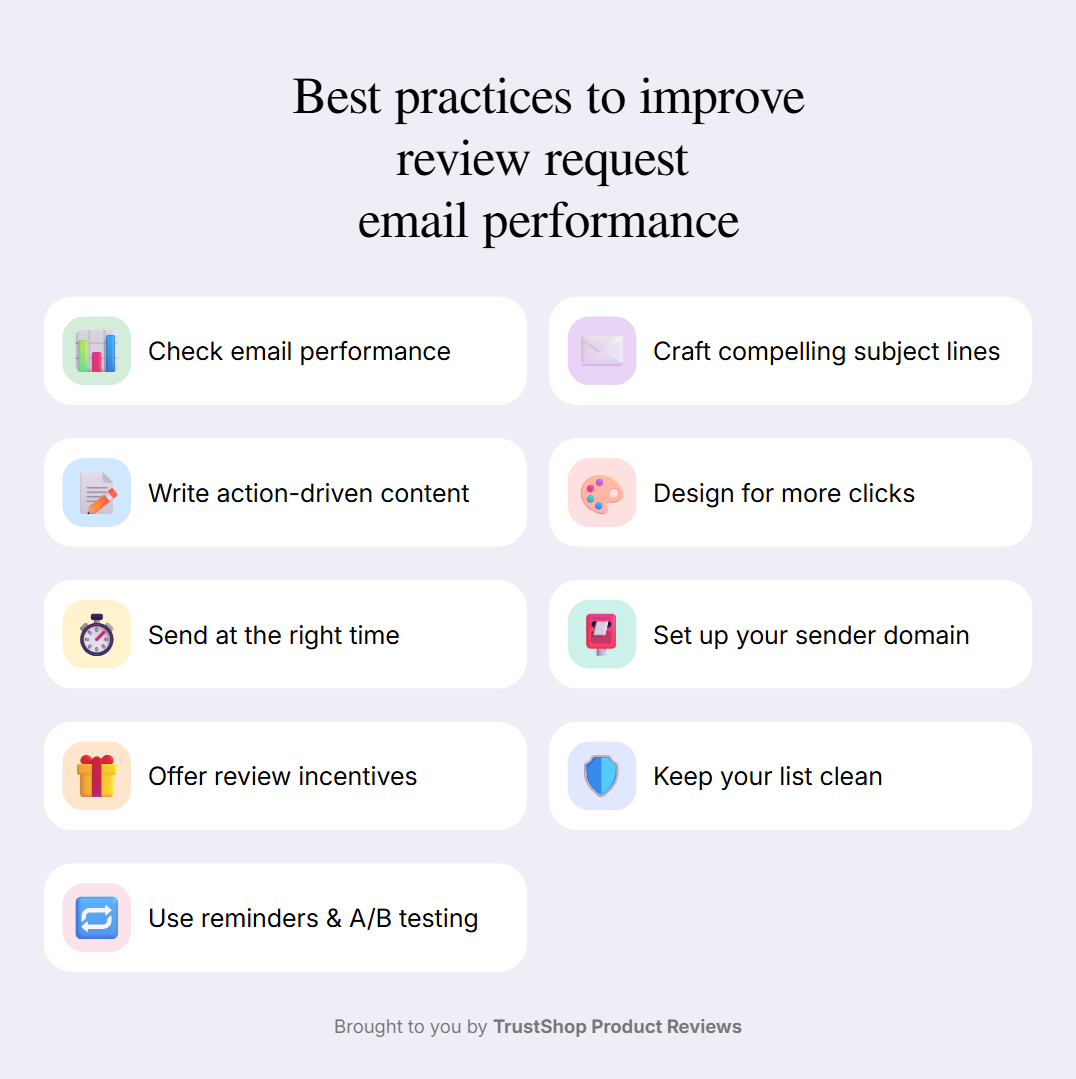
Start by Checking Your Current Email Performance
Before making any changes, you need to understand where your emails are underperforming. Review apps like TrustShop provide a built-in email analytics dashboard that tracks four key metrics for your review request emails:
- Sent — How many emails were delivered
- Opened — How many recipients opened the email
- Clicked — How many clicked through to leave a review
- Reviewed — How many actually submitted a review
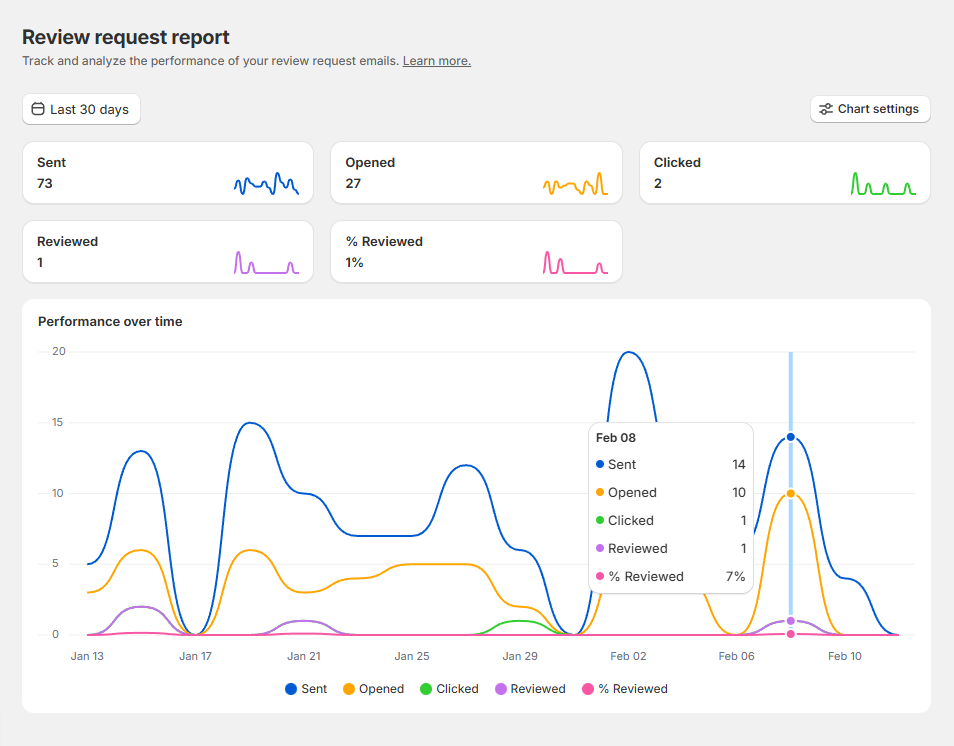
These four numbers tell a story. With this data, you can make smarter, data-backed decisions instead of guessing what’s wrong. Here’s how to diagnose common issues based on where the drop-off occurs:
If your open rate is low
The problem is likely happening before the customer even reads your email. Common causes include:
- Emails landing in spam or promotions tabs — Your email may be filtered away before the customer ever sees it.
- Uncompelling subject lines — The subject line didn’t give the recipient a reason to open.
- Sending to the wrong audience — You may be emailing customers who have unsubscribed, whose addresses have bounced, or who have opted out of marketing.
- Bad send timing — The email arrived at a time when the customer wasn’t checking their inbox.
If your click rate is low
The customer opened the email but didn’t take action. This usually means:
- The email content doesn’t motivate action — There’s no clear reason given for why the customer should leave a review.
- Poor email design — The layout isn’t optimized for mobile, the call-to-action isn’t visible, or the email doesn’t look trustworthy.
- Too much clutter — The email tries to do too many things (promote products, share blog posts, etc.) instead of focusing on one goal: getting a review.
If your review submission rate is low
The customer clicked through but abandoned the review process. Consider:
- The review form is too long or complex — Asking for too much information discourages completion.
- Timing is off — You sent the request before the customer received or had time to use the product.
- The review experience isn’t mobile-friendly — Many customers will land on the form from their phone, and a clunky mobile experience kills conversions.
Once you’ve identified where the biggest drop-off is, you’ll know exactly what to optimize first. Let’s go through each area.
Craft a Subject Line That Gets Opened
Your subject line is the first — and sometimes only — impression your email makes. On average, a person receives over 120 emails per day. Your review request is competing with promotions, newsletters, work emails, and personal messages. If your subject line doesn’t stand out, it won’t get opened.
Here are the principles of a high-performing review request email subject line:
Keep it short and focused. Aim for 6–10 words. Long subject lines get truncated on mobile, and brevity signals clarity. For example: “How’s your new [Product Name]?” is more effective than “We’d love to hear your feedback about your recent purchase from our store!”
Personalize it. Including the customer’s first name, the product name, or the order number makes the email feel relevant rather than generic. A subject like “Anna, how are you enjoying your new sneakers?” performs significantly better than “Leave us a review.”
Avoid spam trigger words. Words like “FREE,” “Guarantee,” “Urgent,” “Cash,” “Click here,” “Discount’” and “Limited time” are red flags for spam filters. Even if your email avoids the spam folder, these words make your message look promotional rather than personal.
Make it feel like a conversation, not a demand. Questions work well because they invite engagement. Compare “Tell us what you think” with “How did everything go with your order?” — the second feels more human.
Write Email Content That Drives Action
Once the email is opened, the content needs to do one thing: get the customer to leave a review. Everything in your email should support that single goal.
Keep it short and scannable. Don’t write paragraphs. Customers should understand what you’re asking within 5 seconds of opening the email. A brief greeting, a one- or two-sentence ask, and a prominent call-to-action button is all you need.
Personalize the greeting. A simple “Hi Anna,” at the top of the email immediately makes the message feel personal rather than automated. Most review apps, including TrustShop, support dynamic variables like {{customer_name}}.
Give a clear reason to review. Customers are more likely to act when they understand why their feedback matters. A line like “Your feedback helps other shoppers make confident decisions — and helps us improve” provides motivation without being pushy.
Don’t try to do too much. This is not the place to cross-sell other products, link to your blog, or promote a sale. Every additional element you add competes with your primary call-to-action and reduces the chance the customer will leave a review.
Offer guidance and support. Some customers don’t leave reviews because they don’t know what to say. Providing a simple prompt — like “What did you love about this product?” — can reduce friction and increase completion rates.
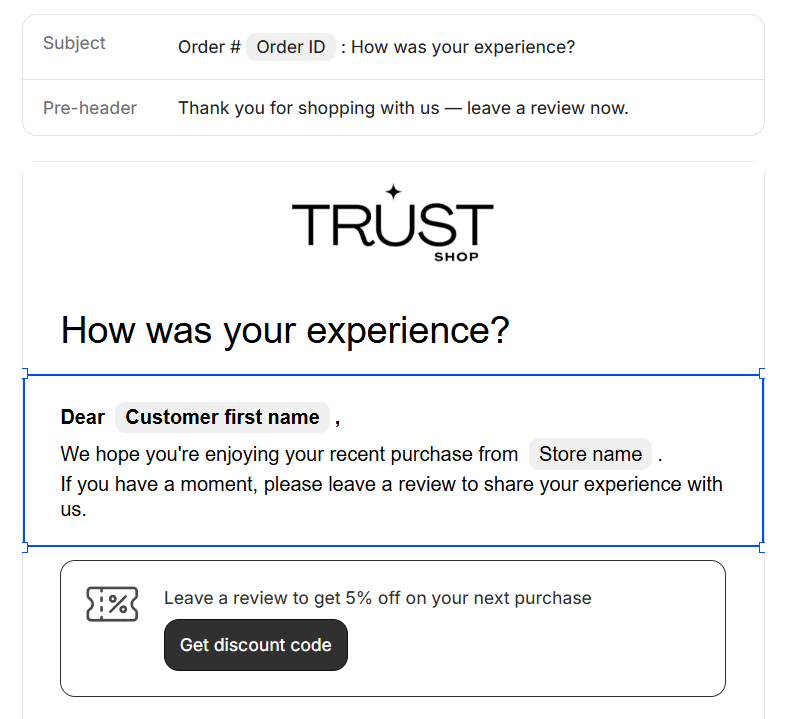
Match Your Brand Voice and Language
Tone of voice
Although review apps like TrustShop provide standard email templates with proven performance, you should take the time to revise the content so it matches your brand’s personality. A luxury skincare brand should sound different from a streetwear label. Customers are more likely to engage with an email that feels like it came from your store, not a generic template.
Language localization
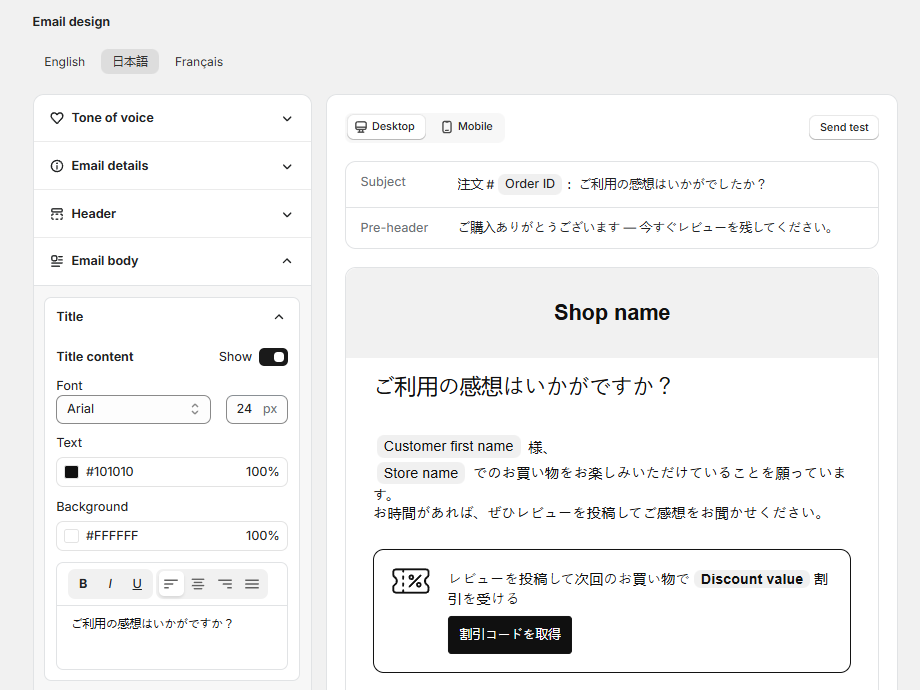
If you sell internationally, consider sending review request emails in the customer’s local language rather than defaulting to English for everyone. A French customer is significantly more likely to open and engage with an email written in French. TrustShop supports multi-language email templates, so you can automatically match the email language to the recipient’s locale.
Design Emails That Drive Clicks and Reviews
Visual design plays a bigger role than most merchants realize. A well-designed email not only looks professional — it guides the customer’s eye toward the action you want them to take.
Use your logo and brand colors. Branded emails feel familiar and trustworthy. Customers are more likely to engage with an email that clearly comes from a store they recognize.
Use a visual call-to-action. Instead of a plain text link, use star-rating icons or buttons that visually reflect the review action.
Enable in-email review submission. TrustShop supports in-email review forms that let customers select a star rating and write their feedback without leaving their inbox — dramatically reducing friction compared to redirecting them to a separate page.
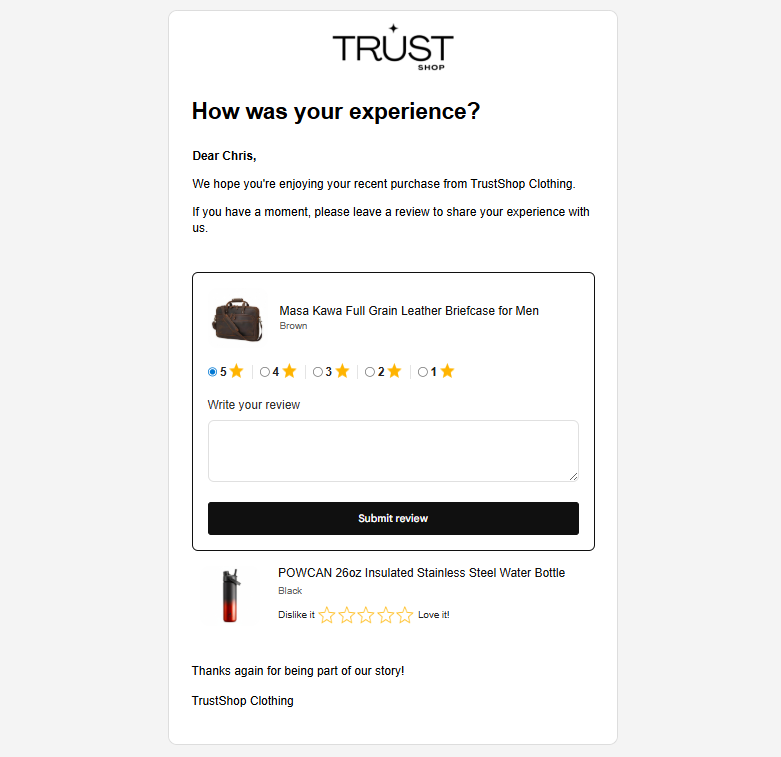
Optimize for all email clients. Your email needs to render correctly across Gmail, Outlook, Apple Mail, Yahoo, and mobile email apps. A layout that breaks on Outlook or looks cramped on mobile will cost you reviews. TrustShop’s pre-built templates are tested across all major email clients and are fully mobile-responsive.
Limit the number of products displayed. If a customer ordered 10 items, showing all of them in a single email can be overwhelming and lead to decision paralysis. Too many images or links in a single email can also trigger spam filters. Limit the display to 3–5 products per email, and sort them strategically based on your goals — for example, by highest price, fewest existing reviews, or newest arrivals.
Offer Incentives to Encourage Reviews
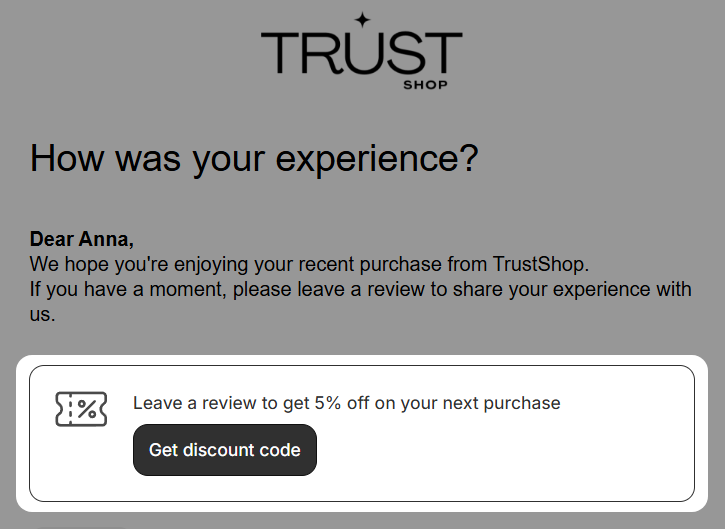
Offering a small discount in exchange for a review isn’t just a tactic to get more reviews — it’s a signal that you genuinely value your customers’ feedback.
A discount code for reviews serves two purposes. First, it gives customers a tangible reason to spend the 2–3 minutes it takes to write a review. Second, and perhaps more importantly, it brings customers back to your store to make another purchase, directly increasing customer lifetime value.
Common incentive structures include a fixed discount (e.g., 10% off the next order), or a higher reward for photo or video reviews. TrustShop allows you to configure automatic discount incentives that are delivered to customers immediately after they submit a review.
Keep in mind that you’re rewarding customers for sharing their honest experience, not for leaving a positive review.
Set Up Your Sender Email Properly
Your sender name and email address matter more than you might think. Before a customer opens your email, they see two things: the subject line and who it’s from. An unrecognizable sender name can cause your email to be ignored or flagged as spam.
Set your sender name to your store name. Customers should immediately recognize who’s emailing them.
Use a custom email domain. If you have your own domain, you can connect it to TrustShop so that review request emails are sent from [email protected] instead of a third-party domain. This dramatically improves trust and deliverability because customers recognize your domain, and email providers are more likely to deliver emails from authenticated domains.
Warm up your domain before sending at scale. If you’re setting up a custom domain for the first time, don’t immediately blast thousands of emails. Start with smaller batches and gradually increase volume over 2–4 weeks. This process, known as domain warm-up, builds your sender reputation with email providers and helps ensure long-term deliverability.
Learn how to set up a custom email domain in TrustShop
Send at the Right Time
Timing is one of the most critical — and most overlooked — factors in review request email performance.
Send too early and the customer hasn’t received or used the product yet. They can’t review what they haven’t experienced, and an early request can even provoke a negative response (“I haven’t even gotten it yet!”).
Send too late and the customer has moved on. The excitement of the purchase has faded, the product is no longer novel, and your email is just another message competing for attention.
The ideal timing depends on two factors: delivery date and product category.
Timing by delivery status
The best practice is to trigger your review request email after the order has been delivered, not after purchase. TrustShop integrates with AfterShip to automatically send review requests based on confirmed delivery status.
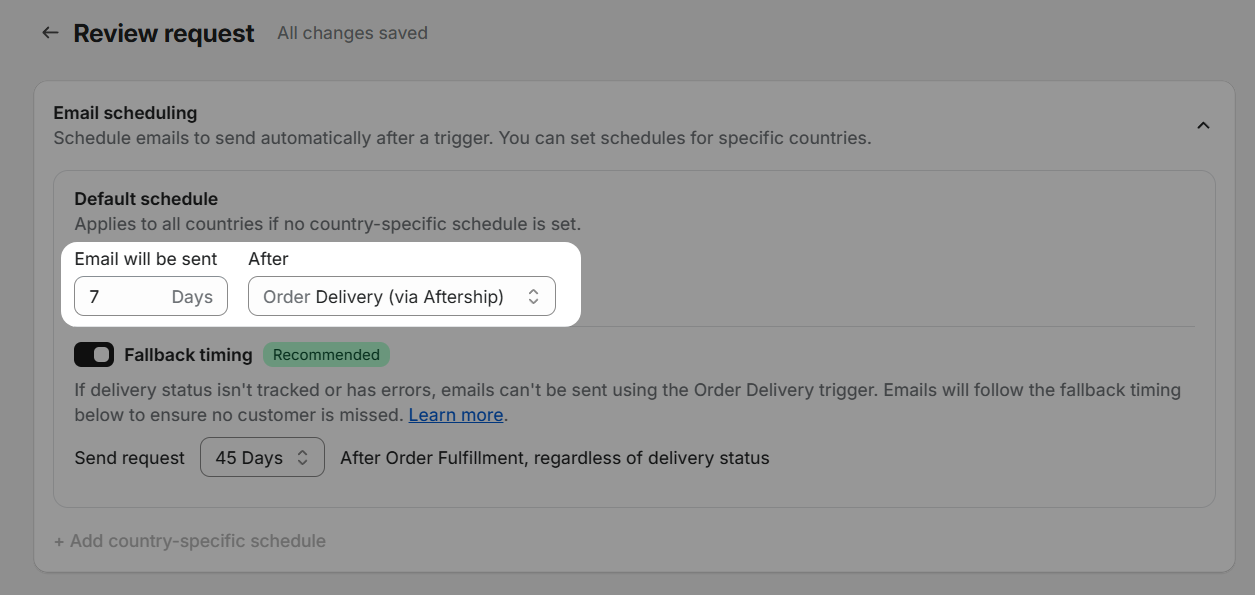
If you don’t use a delivery tracking service, you can set requests based on the fulfillment date or payment date plus a delay period. The delay should reflect the typical transit time for your shipping method. If you sell cross-border, consider setting different delay periods for domestic and international orders — TrustShop supports this out of the box.
Timing by product category
Different products require different amounts of time before a customer can give a meaningful review. Here’s a general reference guide:
| Product Category | Recommended Delay After Delivery | Why |
| Fashion & Apparel | 3–5 days | Enough time to try on and wear the item |
| Beauty & Skincare | 7–14 days | Results often take time to become visible |
| Electronics & Gadgets | 5–7 days | Time to set up and use the product |
| Food & Beverages | 1–3 days | Consumed quickly, feedback is immediate |
| Home & Furniture | 7–14 days | Assembly and use over multiple days |
| Health & Supplements | 14–21 days | Effects develop over a longer period |
| Pet Products | 5–7 days | Time to observe pet’s reaction |
| Books & Media | 7–14 days | Time to read or consume the content |
These are starting points. Use your own data and customer feedback to fine-tune the timing for your specific products and audience.
Clean Your Recipient List
Continuously sending review requests to customers who will never open them — such as those with bounced email addresses, those who have unsubscribed from marketing, or those who have consistently ignored past requests — does more harm than good.
Not only does it skew your metrics, but more importantly, it damages your email domain reputation over time. Email service providers like Gmail and Outlook track your sender behavior. If a large percentage of your emails are unopened, bounced, or marked as spam, your future emails are increasingly likely to be filtered to spam — even for customers who would have opened them.
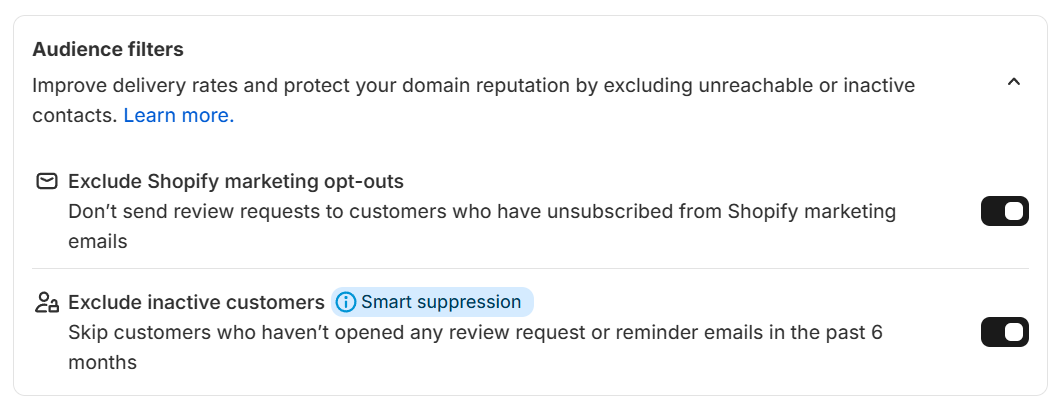
With TrustShop, you can automatically exclude customers who have opted out of email marketing or who have bounced email addresses. You can also suppress requests to customers who haven’t opened any of your previous review request emails. This keeps your list clean, your metrics accurate, and your domain reputation healthy.
Always Include an Unsubscribe Option
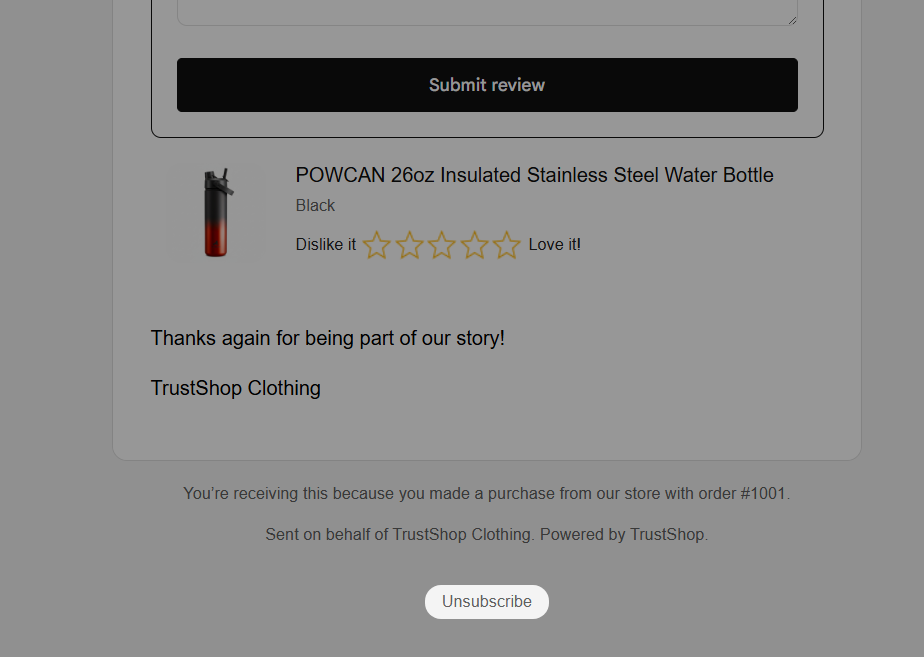
This one is non-negotiable, both for compliance and deliverability. Emails without an unsubscribe link are significantly more likely to be flagged as spam by email providers. More importantly, regulations like CAN-SPAM (US), GDPR (EU), and CASL (Canada) require that commercial emails provide a clear way for recipients to opt out.
TrustShop automatically includes an unsubscribe link in all review request emails, ensuring you stay compliant without any extra configuration.
Use Reminder Emails Strategically
Not every customer will leave a review the moment they receive your email. They might be busy, they might intend to do it later, or they might simply forget. A well-timed reminder email can recover a significant number of reviews that would otherwise be lost.
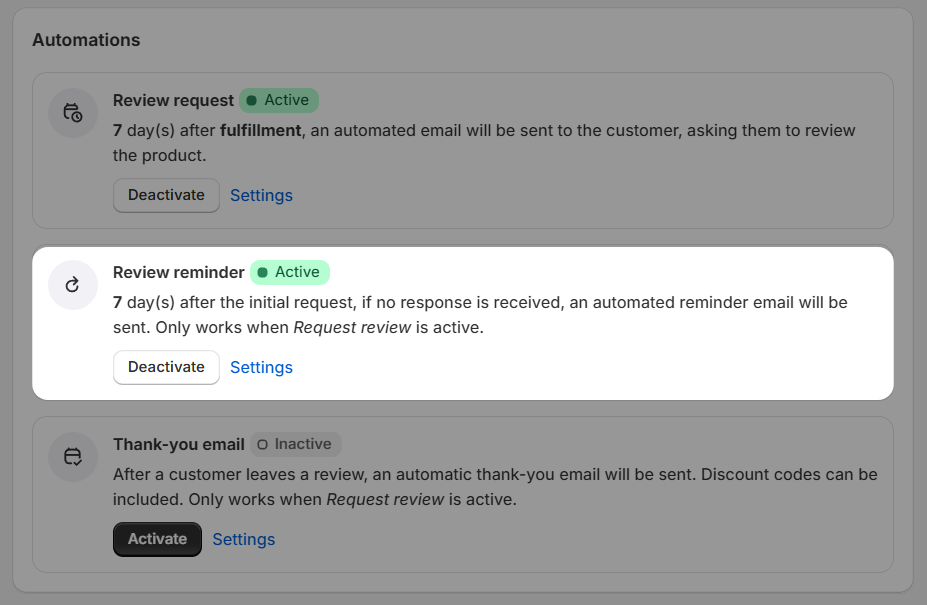
However, restraint is key. Sending more than one reminder can feel aggressive and may lead to spam complaints. The sweet spot for most stores is one reminder, sent 3–5 days after the initial request.
TrustShop supports automated reminder emails with separate content and subject lines, so you can craft a follow-up that feels natural rather than repetitive. For example, your first email might say “How’s your new jacket?” while the reminder might say “We’d still love to hear your thoughts.”
Test, Iterate, and Optimize with A/B Testing
There is no one-size-fits-all formula for review request emails. What works for a luxury watch brand will be different from what works for a pet supplies store. The only way to find what works best for your audience is to test.
Consider testing variations of your subject lines, email content, send timing, incentive amounts, and the number of products displayed. Change one variable at a time so you can clearly attribute any performance changes to the specific adjustment you made.
Over time, these incremental improvements compound. A subject line that increases open rates by 5%, combined with a design change that boosts click rates by 8%, and a timing adjustment that improves review submission by 10%, can result in a dramatically higher overall review collection rate.
Bonus: Improve Your Sender Reputation Organically
If you have a segment of loyal, highly engaged customers, consider asking them to help improve your email deliverability. Here’s how:
If your review request emails are landing in the Promotions tab in Gmail, ask a few trusted customers to drag the email to their Primary inbox. Gmail learns from this behavior and will start routing your future emails to Primary for more users.
If your emails are landing in spam, ask loyal customers to mark them as “Not Spam.” This sends a strong positive signal to the email provider and can meaningfully improve your sender score over time.
This is a long-term tactic, but it’s one of the most effective organic methods to improve deliverability.
Frequently Asked Questions
What should I do if my review request emails go to spam?
Start by checking your sender authentication. Make sure you have SPF, DKIM, and DMARC records properly configured for your sending domain. Next, review your email content for spam trigger words or excessive use of images with little text. Avoid sending large volumes of email from a new or unwarmed domain. Finally, clean your recipient list to remove bounced addresses and unengaged contacts. If you’re using TrustShop with a custom domain, the platform guides you through the authentication setup process.
What is domain reputation and how can I check it?
Domain reputation is a score that email service providers assign to your sending domain based on your email sending behavior. Factors include bounce rates, spam complaint rates, open rates, and engagement. A poor domain reputation means more of your emails will land in spam. You can check your domain reputation using free tools like Google Postmaster Tools (for Gmail), Sender Score by Validity, or MXToolbox. Maintaining a clean sending list, sending relevant content, and properly authenticating your domain are the best ways to protect your reputation.
How do I send automated review request emails?
The easiest way is to use a review app like TrustShop. Once installed on your Shopify store, TrustShop automatically sends review request emails after orders are fulfilled or delivered. You can customize the email template, timing, incentives, and recipient rules.