



Have you ever searched for a product on Google and noticed some results display star ratings while others don’t? Those stars immediately catch your eye — and they make you far more likely to click.
Those stars aren’t random. They’re the result of a specific setup that any Shopify store can implement. This guide explains the different types of star ratings on Google, why they matter, and how to set them up using TrustShop.
Types of Star Ratings on Google
There are three main ways star ratings can appear on Google. Each works differently and serves a different purpose.
1. Google Business Profile Ratings
These are the star ratings that appear when someone searches for your business by name. They come from Google Reviews — the reviews customers leave directly on your Google Business Profile.
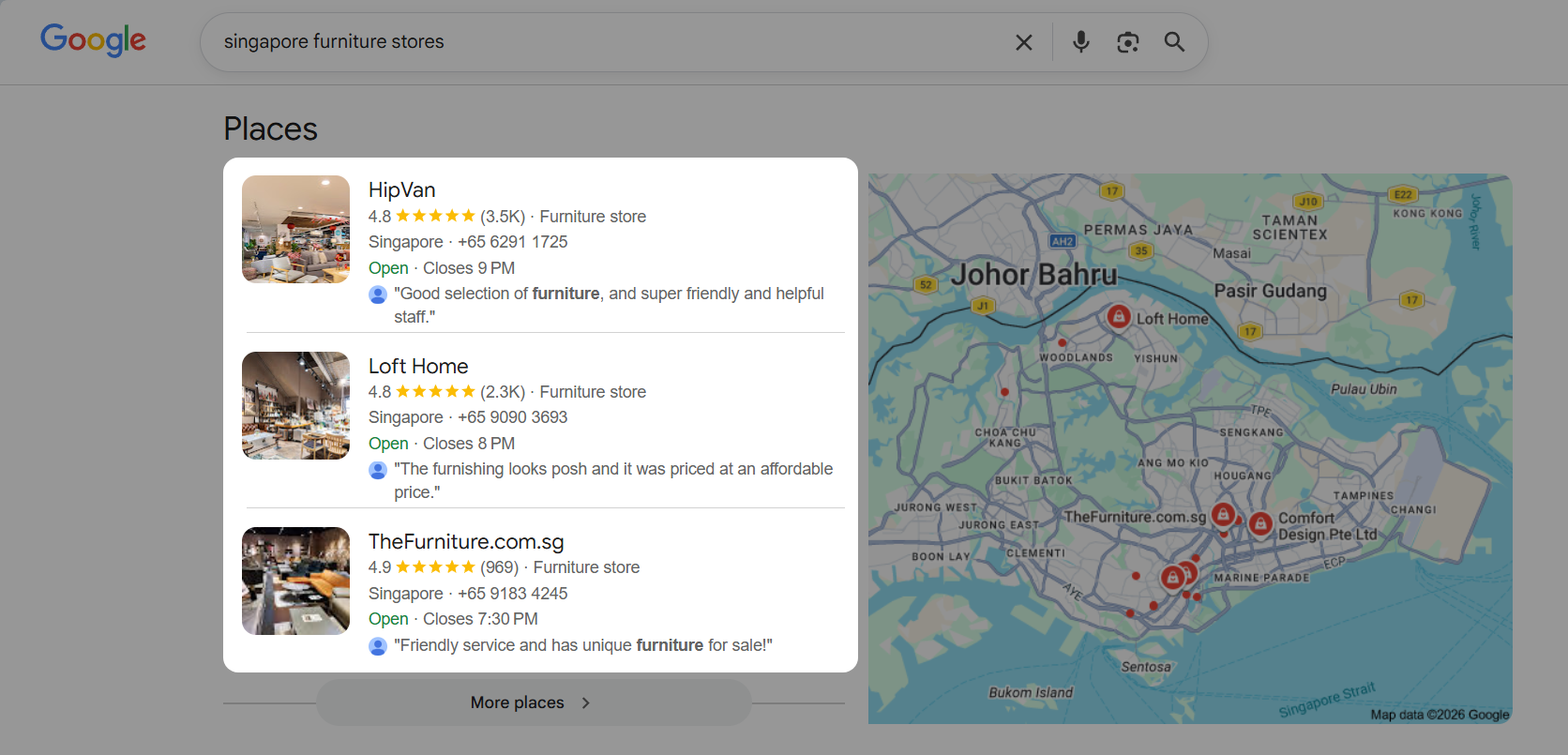
This type of rating is tied to your business as a whole, not to individual products. It’s most relevant for local businesses and brick-and-mortar stores. If you run a Shopify store, this matters less than the next two types — but it’s still worth maintaining a strong Google Business Profile.
2. Review Rich Snippets (Organic Search)
Review rich snippets are the star ratings that appear beneath your product listing in Google’s organic search results. They show your product’s average rating and the number of reviews — for example, “4.7 ★★★★★ (28,669 reviews).”
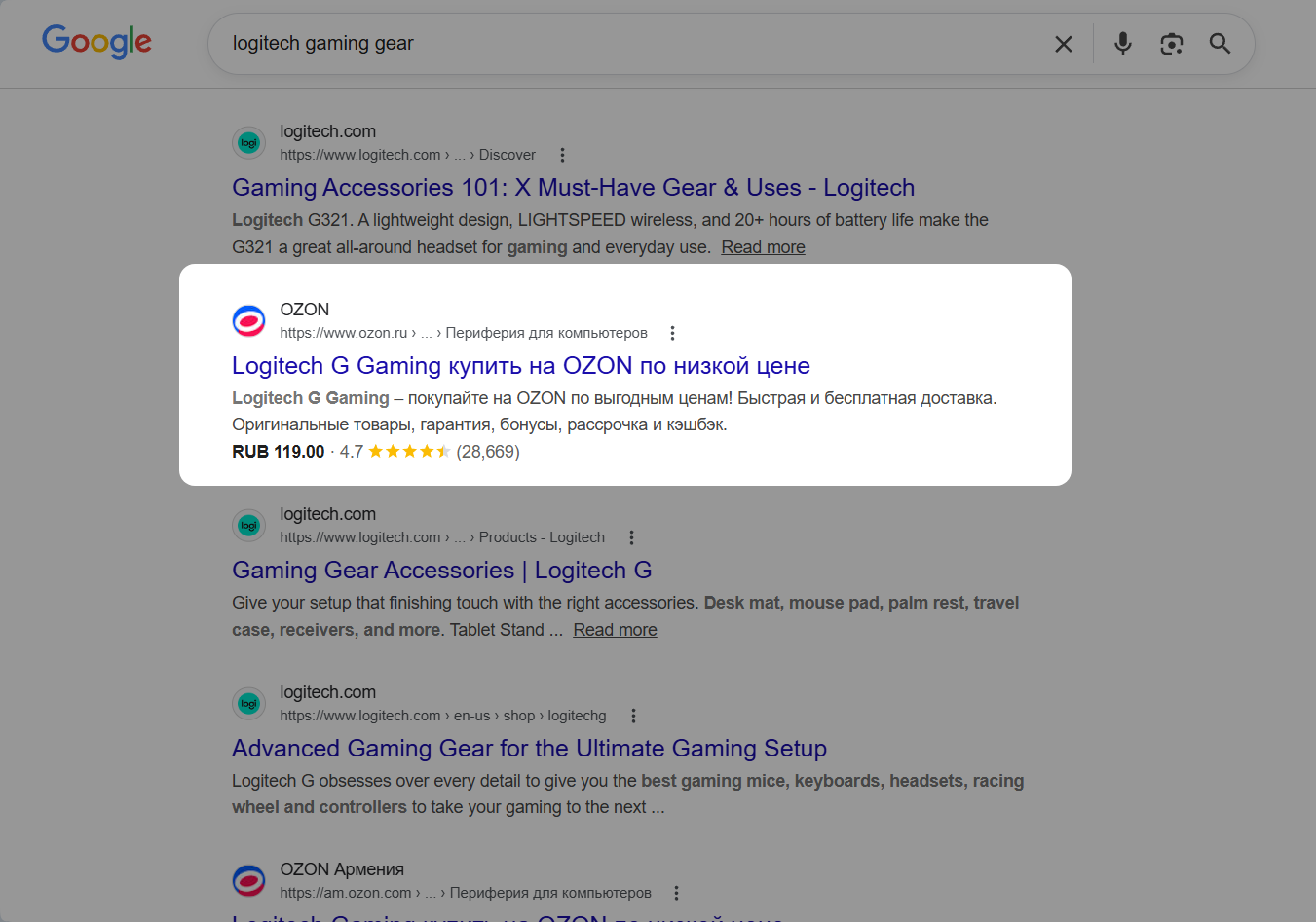
These are powered by structured data (also called schema markup) — specifically, the Product and AggregateRating schema types defined by Schema.org. When Google’s crawler finds this structured data on your product page, it can display the star ratings directly in search results.
Review rich snippets are free — they appear in organic results, not paid ads.
3. Google Shopping Ratings
These are the star ratings that appear on Google Shopping ads and free product listings. Unlike review rich snippets, Google Shopping ratings require you to submit a product reviews feed through Google Merchant Center.
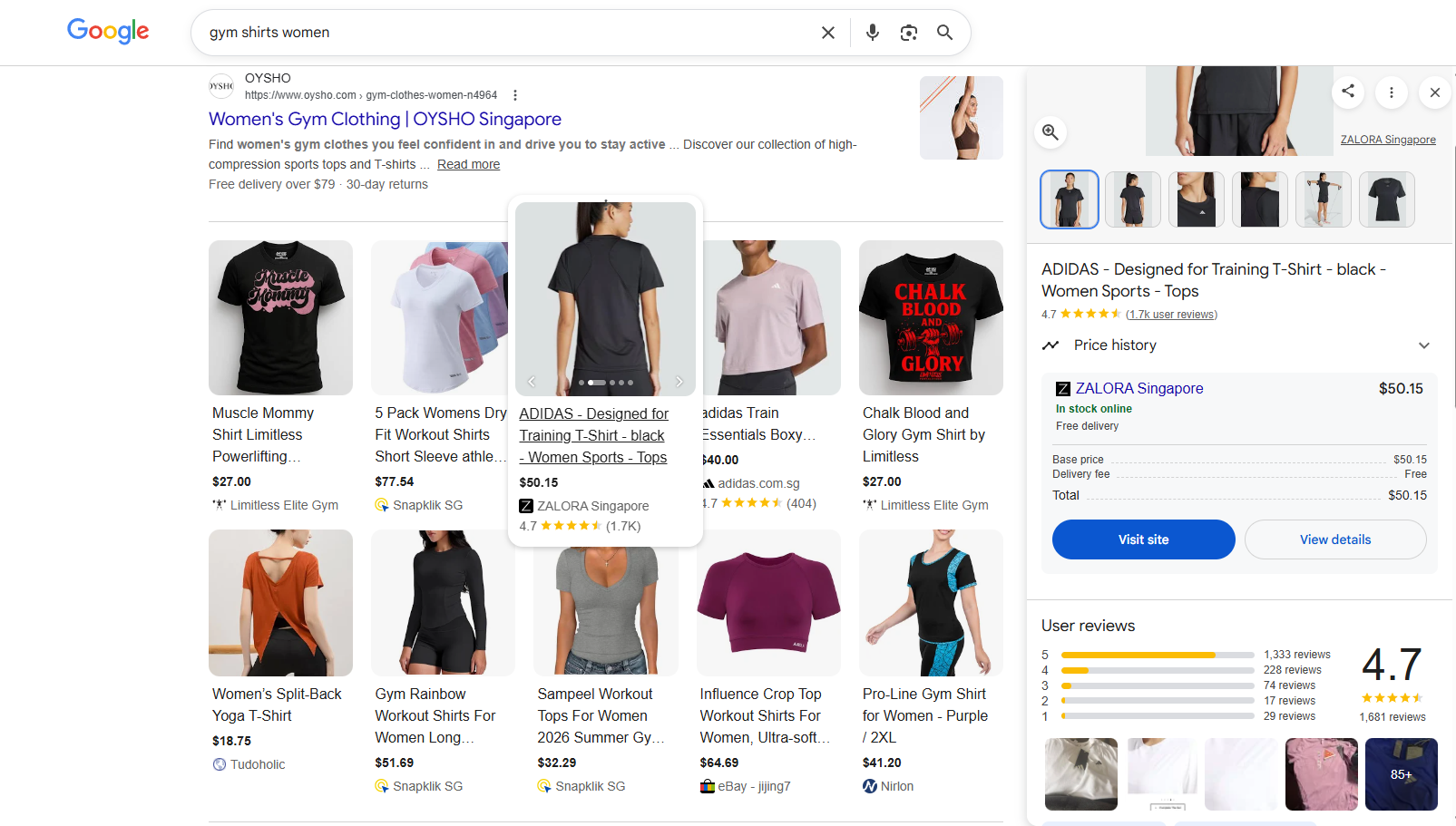
This involves a separate approval process where Google reviews your feed before ratings go live.
Why Star Ratings on Google Matter
Star ratings in search results aren’t just a visual bonus. They directly impact your store’s traffic and sales.
- Higher click-through rates. Rich snippets can improve CTR by 20–30% or more. In a page full of plain blue links, a result with gold stars and a review count immediately stands out and captures attention.
- Instant trust before the click. A shopper who sees a 4.9-star rating with 200+ reviews already trusts your product before visiting your site. They skip the skepticism phase and land on your page ready to consider buying — not wondering if you’re legitimate.
- More qualified traffic. People who click on a result with visible star ratings are further down the purchase funnel. They’ve already seen social proof and are more likely to convert once they land on your page.
- Indirect SEO benefits. Higher CTR signals to Google that your result is relevant and valuable. Over time, this positive engagement can contribute to improved search rankings — creating a compounding cycle of more clicks, more trust, and better visibility.
How to Show Review Rich Snippets Using TrustShop
TrustShop’s SEO Rich Snippets feature automatically adds the required structured data markup to your product pages. No manual coding, no developer needed — TrustShop handles the technical implementation so your product ratings can appear in Google search results.
Note: Before you can show star ratings on Google, make sure you have reviews on your products. Focus on collecting authentic reviews through TrustShop’s automated email requests, QR codes. The more reviews your products have, the stronger your rich snippet data.
Step 1: Enable Rich Snippets in TrustShop
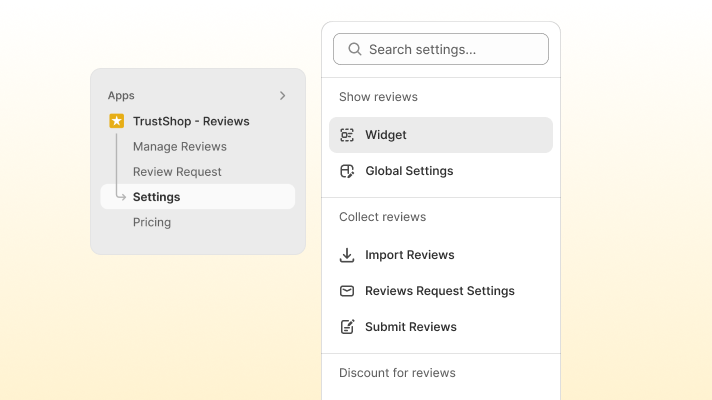
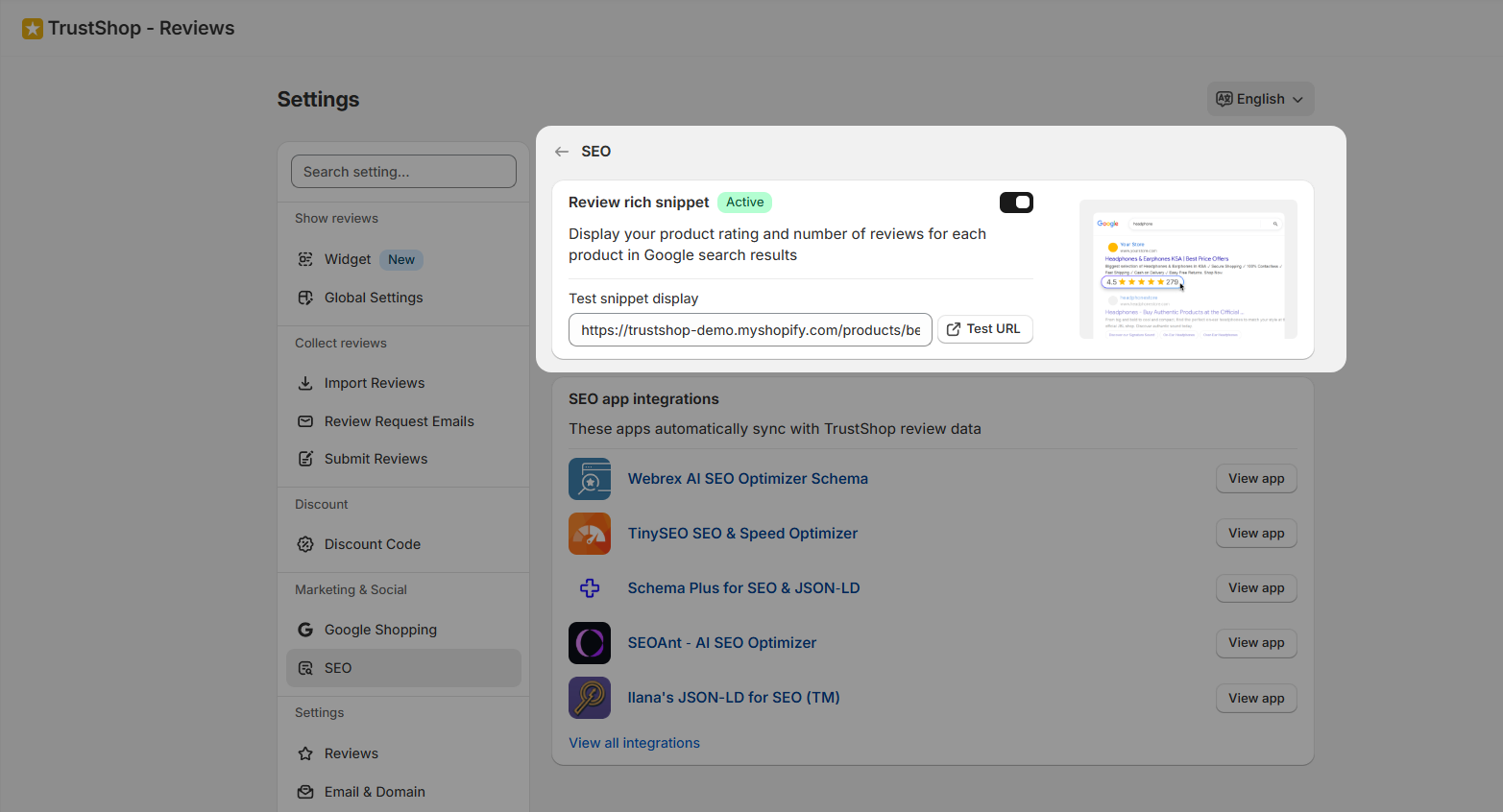
In TrustShop, go to Settings → Marketing & Social → SEO and toggle on the Review rich snippet feature. That’s it — TrustShop will automatically inject the correct Product and AggregateRating schema into your product pages.
Step 2: Test Your Rich Snippets
Verify that everything is set up correctly:
- In the SEO settings section, navigate to Test snippet display to verify your markup. Alternatively, you can use Google’s Rich Results Test directly.
- Enter the URL of a product page that has reviews
- Click Test URL
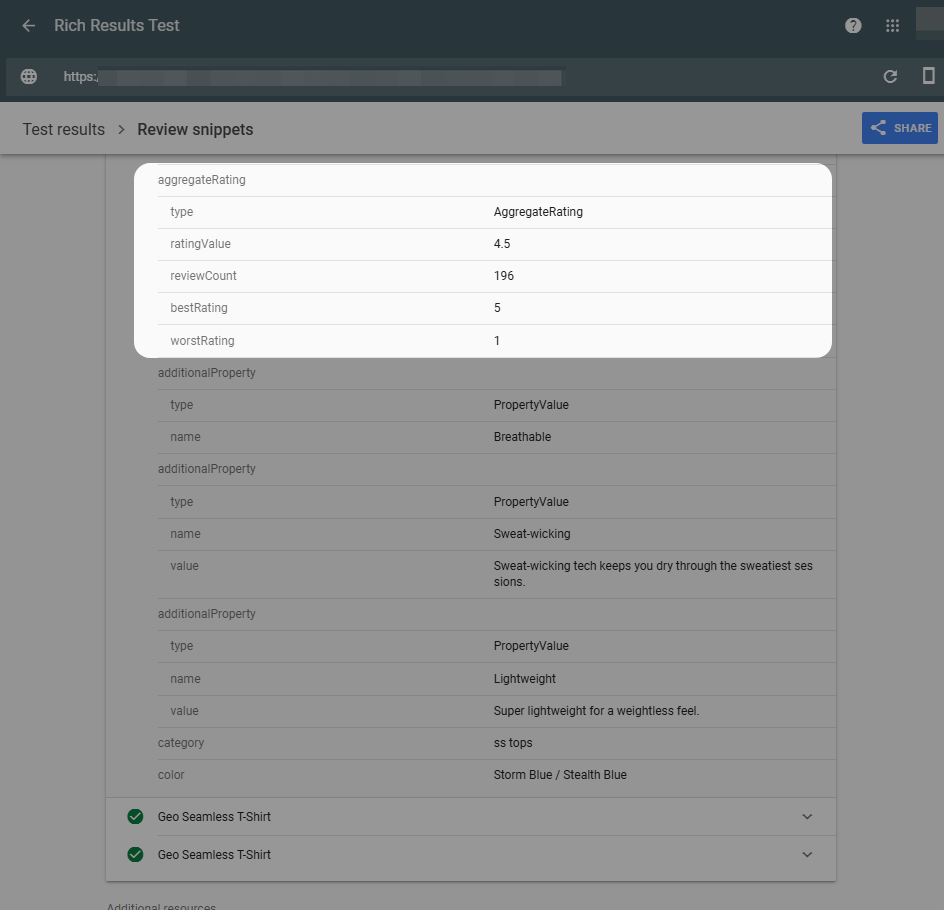
- Scroll down to the Review snippet result
If the test shows no issues, your structured data is correctly implemented.
Step 3: Wait for Google to Index
Even with valid structured data, it can take up to 30 days for star ratings to appear in search results. Google needs time to re-crawl and re-index your product pages.
To speed things up, you can request Google to recrawl your URLs through Google Search Console:
- Log in to Google Search Console
- Enter your product page URL in the inspection tool
- Click Request Indexing
- Repeat for your most important product pages
Important note: Google decides whether to display stars on a case-by-case basis, even with valid markup. Having structured data in place ensures you’re eligible whenever they do.
How to Show Google Shopping Ratings Using TrustShop
Google Shopping ratings require a separate setup through Google Merchant Center. Here’s the full process.
Step 1: Set Up Google Merchant Center
Before anything else, you need a Google Merchant Center account with your products listed. If you haven’t done this yet, go to Google Merchant Center to get started.
You can create and upload a product feed manually following Google’s instructions, or use a Shopify app to automate the process:
Google typically takes around 10 business days to approve your products.
Step 2: Submit the Product Ratings Interest Form
Go to Google’s Product Ratings Interest Form and submit it.When asked “Do you work with an approved third-party reviews aggregator?”, select No.
Submit Google’s Product Ratings Interest Form to enable Shopping ratings
Step 3: Generate Your Reviews Feed
In your TrustShop dashboard:
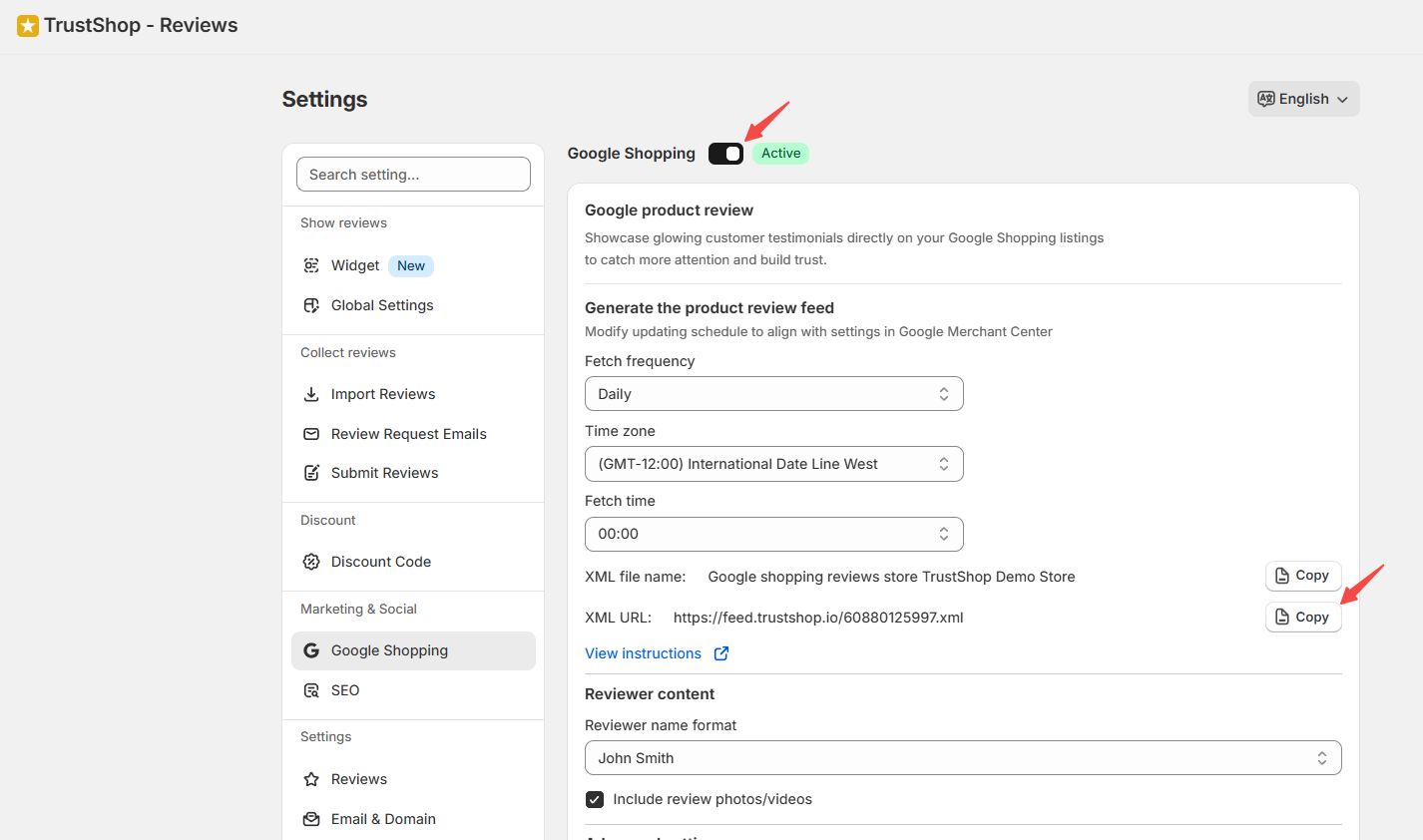
- Go to Settings → Marketing & Social → Google Shopping
- Enable Google Shopping
- Configure the fetching time — set it at least 30 minutes earlier than your Google Merchant Center fetch schedule
- Copy the XML URL
Step 4: Connect the Feed in Merchant Center
In your Google Merchant Center account:
- Under Analytics, click Reviews
- Go to the Product reviews tab
- Click Product review data sources, then select Add product reviews
- Choose Add product reviews from a file
- Select Enter a link to your file and paste the XML URL from TrustShop
- Click Save
For detailed step-by-step instructions, see the TrustShop guide on displaying reviews on Google Shopping.
Step 4: Wait for Google’s Approval
Google will conduct a manual review of your feed, which takes 2–4 weeks. During this period, a Google Shopping representative may contact you to ask about your reviews.
If everything checks out, Google will send you an email confirming that your product reviews feed has been accepted. After approval, your product ratings will start appearing on Google Shopping.
Final Thoughts
Star ratings on Google are one of the simplest, highest-ROI things you can do for your Shopify store. They cost nothing, build trust before the click, and drive more qualified traffic to your product pages.
Start Showing Star Ratings on Google
Set up review rich snippets and Google Shopping ratings with TrustShop