


Goals and Outcomes
Most store visitors leave without reaching out — not because they’re uninterested, but because there’s no easy way to ask a question in the moment. Trust1 WhatsApp 1.2 introduces the WhatsApp Chat Button, giving merchants a simple way to make themselves reachable on WhatsApp directly from their storefront.
In this article, you will learn how to add and configure the WhatsApp Chat Button on your store, customize its appearance, and set up triggers to engage visitors at the right moment.
Feature Overview
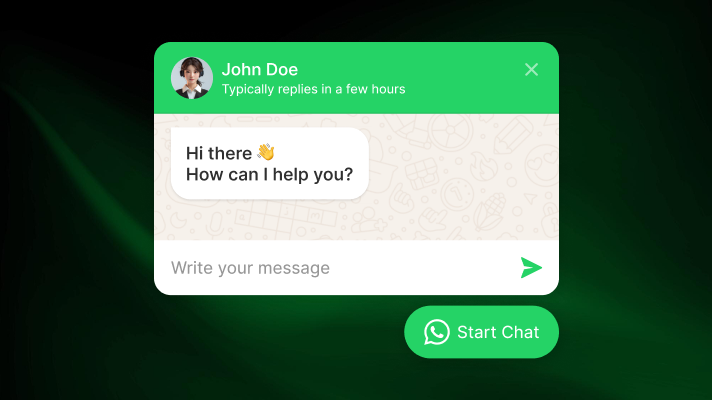
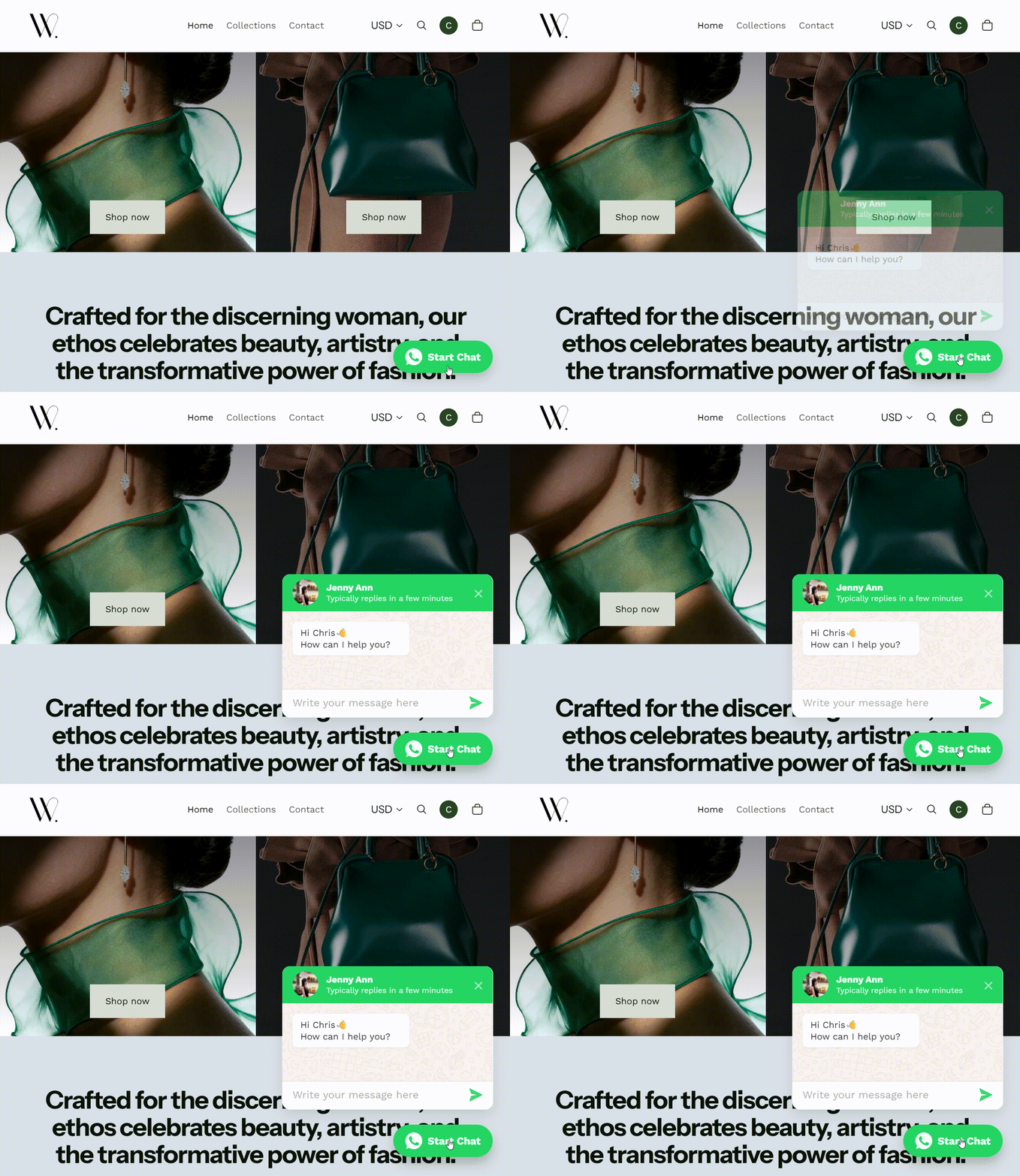
The WhatsApp Chat Button adds a floating, clickable widget to your storefront. When a visitor clicks it, a WhatsApp window opens so they can send a message directly to your connected phone number.
A few things to note:
- Conversations happen in WhatsApp — Trust1 does not store chat history or contact information
- The button works on both desktop and mobile
- You can configure when and where the button appears, and set it to open automatically based on time on page or scroll position
The feature also includes an optional chat widget — a WhatsApp-style pop-up with a welcome message that appears before the visitor is taken to WhatsApp, giving your store a more engaging first impression.
Step-by-Step Guide
Add the WhatsApp Chat Button
- In your Trust1 WhatsApp dashboard, navigate to Storefront Chat Button
- Click Configure
- Toggle on Widget Status
- Enable App Embed in your Shopify Theme Editor
General Settings
On the WhatsApp Chat Button page, open the Settings tab:
- Connect WhatsApp — Enter the phone number that will receive messages from visitors
- Position — Set the alignment and offset of the button on your storefront
- Chat Display Settings — Choose whether to show the button on mobile, which pages to display it on, and when to display it
- Open Chat Triggers — Set the button to open automatically when the first active condition is met: Time on Page or Scroll Position
Button Design & Content
On the WhatsApp Chat Button page, open the Design & Content tab:
- Button Design — Choose your preferred button style, icon, and color
- WhatsApp Chat Widget — Enable a WhatsApp-style chat window that greets visitors with a welcome message before they continue to WhatsApp. Visitors can type a message and click Send to open WhatsApp with their message pre-filled.
- Content — Customize the text displayed in the chat widget
Also in this release
- New COD Confirmation Flow: You can now create automated flows using the “COD Order” trigger filter to send order confirmations and payment reminders specifically for COD orders.
- We’ve also introduced multiple improvements to Manual Send, Broadcast, and Templates for a smoother, more intuitive user experience.
Have questions or feedback? Contact us at [email protected].